Visio How-To: Adding and Editing Connectors
- Visio for patent drawings
- May 24, 2025
Table of Contents
Why Connectors Matter in Patent Figures
In flowcharts, system diagrams, or process figures, connectors show relationships—what happens next, how components interact, and where the logic flows. Mastering connectors in Visio ensures your figures are clear, compliant, and easy to revise.
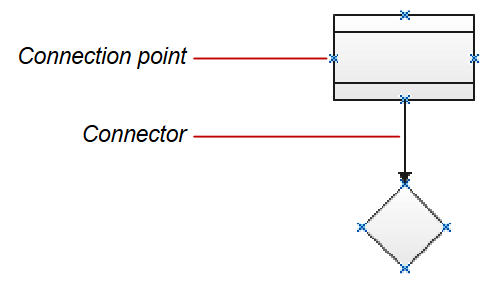
Two Types of Connections in Visio
Visio supports two types of connections that behave differently when you move shapes around:
🔹 Point Connection (Fixed)
Attaches the connector to a specific connection point on a shape. The connector stays anchored at that exact location—even if the shape moves.
🔸 Shape (Dynamic) Connection
Attaches the connector to the entire shape. Visio chooses the best attachment point automatically, adjusting the connector path as shapes move.
Dynamic connections are ideal for flexible, fast editing. Point connections are better when you want full control over exact connector locations.
When to Use Each Type
| Use Case | Recommended Connector Type |
|---|---|
| Sketching initial flowcharts | 🔸 Dynamic |
| Aligning with callouts | 🔹 Point |
| Drawing formal claim diagrams | 🔸 Dynamic (for flexibility) |
| Editing precise shape joins | 🔹 Point |
Quick Tips for Better Connector Management
- ✅ Use AutoConnect arrows for rapid diagramming
- 🖱️ Hold
Ctrlto force point connections manually - 🔁 Switch between point and dynamic by dragging connector ends to a shape’s edge vs. its connection dots
- 🧲 Turn on connection points via
View > Connection Pointsif you want to snap precisely
🚀 Want to Work Smarter with Patent Drawings?
Learn how to revise, draft, and annotate drawings confidently — the easy way, with smart tools and streamlined lessons.