Collaborating with Microsoft Visio: How Teams Work Together Without Chaos
- IP DaVinci
- Visio for patent drawings
- December 24, 2025
Table of Contents
🤝 Can Teams Really Collaborate Using Visio?
When people compare Lucid and Microsoft Visio, collaboration is often the first concern.
Lucid is known for real-time, Google-Docs-style co-editing.
Visio, by contrast, is often assumed to be a “single-user” tool.
That assumption is wrong.
Visio does support collaboration—but it does so through structure, ownership, and control, not free-for-all editing. And for regulated, production-grade work like patent drawings, engineering diagrams, and academic figures, that difference matters.
The Real Difference: Real-Time vs. Controlled Collaboration
Lucid and Visio are built for different phases of work.
Lucid excels at:
- Brainstorming
- Early ideation
- Whiteboarding
- Free-form sketching
Visio excels at:
- Accuracy and consistency
- Version control
- Review and approval workflows
- Standardized production drawings
Visio assumes that not everyone should edit everything at the same time—especially when drawings carry legal or technical consequences.
4 Proven Ways Teams Collaborate Using Visio
1️⃣ SharePoint / OneDrive Co-Authoring
This is the closest Visio gets to Lucid-style collaboration.
How it works
- The
.vsdxfile is stored in SharePoint or OneDrive - Multiple users open the same file
- Visio automatically locks shapes while someone edits them
What teams can do
- Work on different pages simultaneously
- Edit different sections without overwriting
- See presence indicators
- Merge changes safely
Best for
- Law firms
- Corporate IP teams
- Universities using Microsoft 365
This works best when collaboration is intentional, not chaotic.
2️⃣ Page-Based Collaboration (Most Common in Practice)
This is how real patent and engineering teams actually work.
Pattern
- One Visio file
- Multiple pages
- Each contributor owns specific pages or figures
Example
- Pages 1–2: Flowcharts
- Pages 3–6: System diagrams
- Page 7: Overview figure
Each person works independently, conflicts are avoided, and the final drawing set remains consistent.
This approach scales cleanly across teams and projects.
3️⃣ Review, Comments & Markup (Where Visio Is Stronger Than Lucid)
Visio shines in review workflows.
Built-in capabilities
- Comments and annotations
- Review panes
- Change tracking via SharePoint
- Version history and rollback
Typical flow
- Drafter prepares figures
- Attorney or reviewer adds comments
- Drafter resolves feedback
- Final version is approved
This maps directly to legal, academic, and compliance-driven processes—where review quality matters more than live cursor movement.
4️⃣ Cloud & Remote Workspaces (Lucid-Like, But Controlled)
This is the most powerful—but least understood—approach.
How it works
- Visio runs in a cloud workspace (AVD / Cloud PC)
- Files live in a shared environment
- Everyone uses the same Visio version, templates, and stencils
Benefits
- No local installs
- No version mismatches
- Centralized files
- Standardized workflows
- Secure access from any device
This is how Visio becomes collaborative without sacrificing precision.
What Visio Is Not Trying to Be
Visio is intentionally not:
- A whiteboard
- A brainstorming canvas
- A free-form live sketch tool
That’s a feature, not a flaw.
Production drawings—especially patent figures—require:
- Controlled edits
- Clear ownership
- Consistent line weights
- Reliable versioning
Lucid’s strength in spontaneity can become a liability when accuracy and compliance matter.
The Right Way to Frame the Comparison
When someone says:
“Lucid is better because it’s collaborative”
What they usually mean is:
“Lucid supports simultaneous brainstorming better”
But for production work, the reality is:
Visio supports collaboration through structure, not chaos
And that structure is exactly what regulated teams need.
👇 Collaboration Compared
| Lucid | Microsoft Visio |
|---|---|
| Real-time free editing | Controlled co-authoring |
| Great for brainstorming | Built for production |
| Minimal version control | Strong version history |
| Whiteboard-first | Standards-first |
| Loose ownership | Clear responsibility |
⚡ Collaboration Without Compromising Quality
Visio doesn’t replace brainstorming tools—it replaces drawing errors, version confusion, and rework.
When paired with standardized workflows, shared templates, and cloud access, Visio becomes a powerful collaboration platform for teams that care about accuracy, repeatability, and outcomes.
That’s why Visio remains the backbone of serious patent, engineering, and academic drawing environments.
🧠 Collaboration, the Professional Way
The IP DaVinci System combines structured Visio workflows with training, toolkits, and cloud access—so teams collaborate efficiently without sacrificing quality.
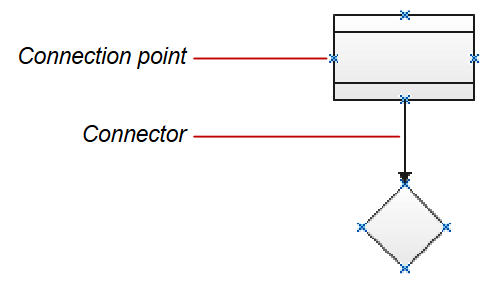
Why Connectors Matter in Patent Figures
In flowcharts, system diagrams, or process figures, connectors show relationships—what happens next, how components interact, and where the logic flows. Mastering connectors in Visio ensures your figures are clear, compliant, and easy to revise.
Two Types of Connections in Visio
Visio supports two types of connections that behave differently when you move shapes around:
🔹 Point Connection (Fixed)
Attaches the connector to a specific connection point on a shape. The connector stays anchored at that exact location—even if the shape moves.
🔸 Shape (Dynamic) Connection
Attaches the connector to the entire shape. Visio chooses the best attachment point automatically, adjusting the connector path as shapes move.
Dynamic connections are ideal for flexible, fast editing. Point connections are better when you want full control over exact connector locations.
When to Use Each Type
| Use Case | Recommended Connector Type |
|---|---|
| Sketching initial flowcharts | 🔸 Dynamic |
| Aligning with callouts | 🔹 Point |
| Drawing formal claim diagrams | 🔸 Dynamic (for flexibility) |
| Editing precise shape joins | 🔹 Point |
Quick Tips for Better Connector Management
- ✅ Use AutoConnect arrows for rapid diagramming
- 🖱️ Hold
Ctrlto force point connections manually - 🔁 Switch between point and dynamic by dragging connector ends to a shape’s edge vs. its connection dots
- 🧲 Turn on connection points via
View > Connection Pointsif you want to snap precisely
🚀 Want to Work Smarter with Patent Drawings?
Learn how to revise, draft, and annotate drawings confidently — the easy way, with smart tools and streamlined lessons.