Visio How-To: Editing Text Accurately in Patent Figures
- Visio for patent drawings
- May 24, 2025
Table of Contents
Edit Patent Drawing Text with Confidence Using the Three-Click Rule
Whether you’re adjusting flowchart labels or correcting reference numbers, editing text in Microsoft Visio should be quick, not frustrating. But many users struggle with selecting and modifying text efficiently.
Visio uses a “Three-Click Rule” to manage how you interact with text inside shapes. Once you understand this method, you can confidently add, select, and fine-tune any annotation in your patent figures—without disrupting the layout.
🖱️ The Three-Click Rule for Text Interaction
✅ 1. Add Text to a Shape
Click the shape once and start typing—Visio automatically creates a text box inside the shape.
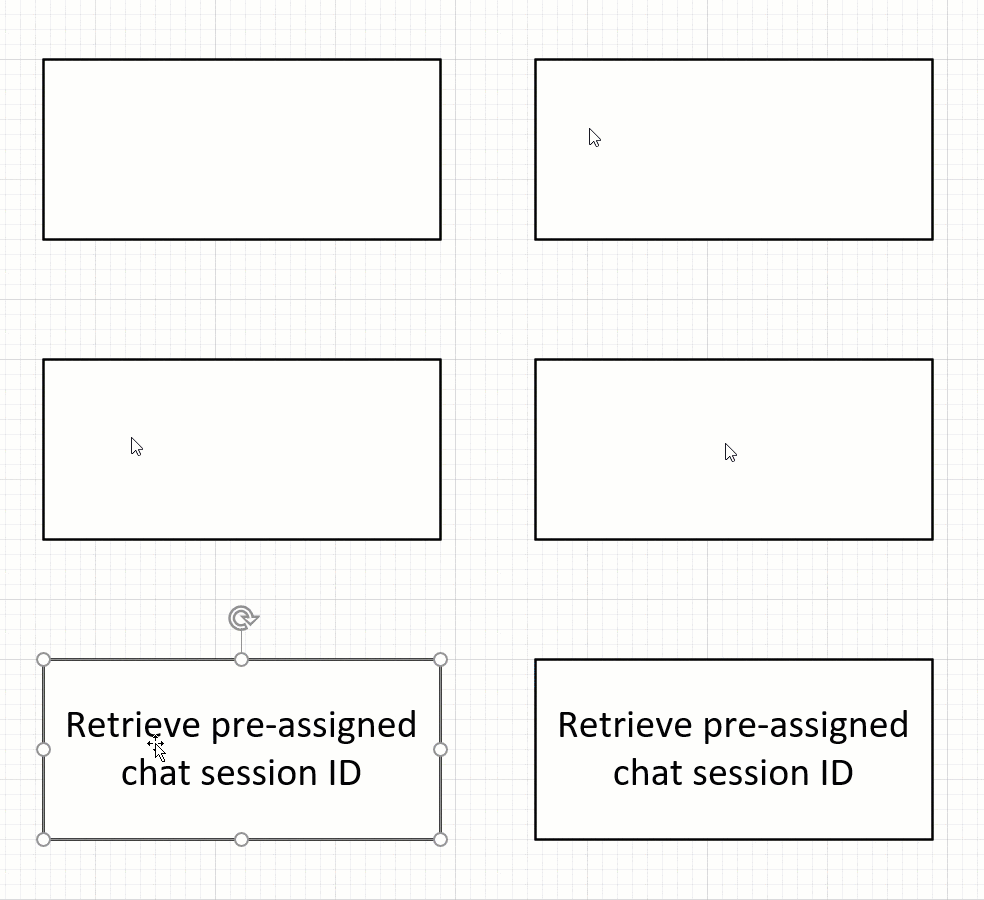
✅ 2. Select All Text
Double-click the shape to highlight and select all existing text at once—great for quick replacements or formatting.

✅ 3. Position the Cursor
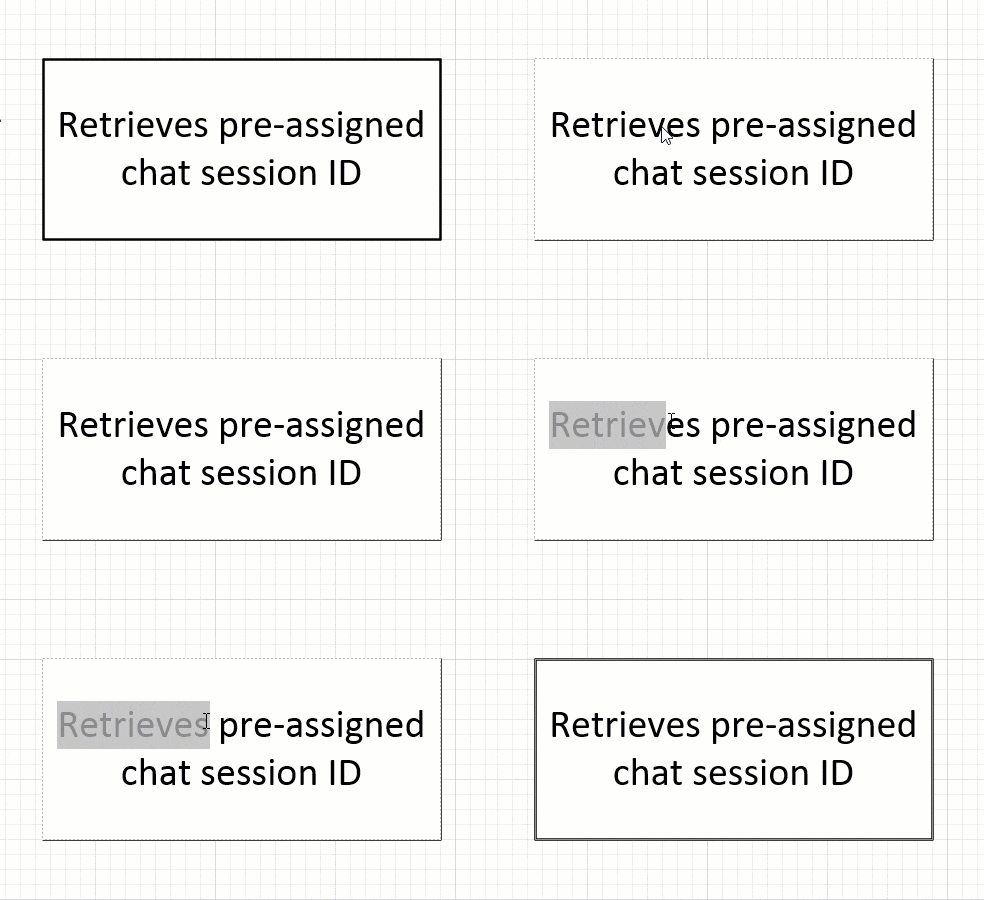
Triple-click the shape to place your cursor exactly where you want it within the text.

🎯 Selecting Just Part of the Text
To modify only a portion of the text:
- Triple-click to place the cursor.
- Drag to select the exact words or characters to edit.
Pro Tips for Patent Professionals
- Use single-click for fast labeling.
- Use double-click for shape-wide edits (e.g., changing “Step A” to “Step 1”).
- Use triple-click + drag to update individual terms or reference numbers.
🚀 Want to Work Smarter with Patent Drawings?
Learn how to revise, draft, and annotate drawings confidently — the easy way, with smart tools and streamlined lessons.