Visio How-To: Working with Pages in Patent Drawings
- Visio for patent drawings
- May 24, 2025
Table of Contents
Manage Multi-Figure Drawings with Page Control in Visio
Patent drawings often span multiple figures, and each figure must be properly formatted to meet office requirements. With Microsoft Visio, creating and managing multi-page documents is straightforward—if you know the right techniques.
Adding New Pages with Consistent Settings
Each new page in your Visio file should maintain consistent formatting: orientation, margins, and figure size. Here’s how to ensure that:
➕ To Insert a New Page with Matching Layout:
- Click on an existing page that already has the correct settings (e.g., landscape orientation, correct margins).
- Use the Insert Page (
+) tool or right-click the page tab and select “Insert Page.”
Visio will inherit all settings from the currently selected page:- Page size and orientation
- Margins and border settings
- Background and numbering format
This approach ensures your new pages stay compliant with patent figure standards and don’t require reformatting later.
Renaming and Reordering Pages
Organizing your drawing file improves clarity—especially when working across multiple figures or flowcharts.
✏️ To Rename a Page:
- Right-click the page tab and choose Rename, or
- Double-click the tab and enter the new page name.
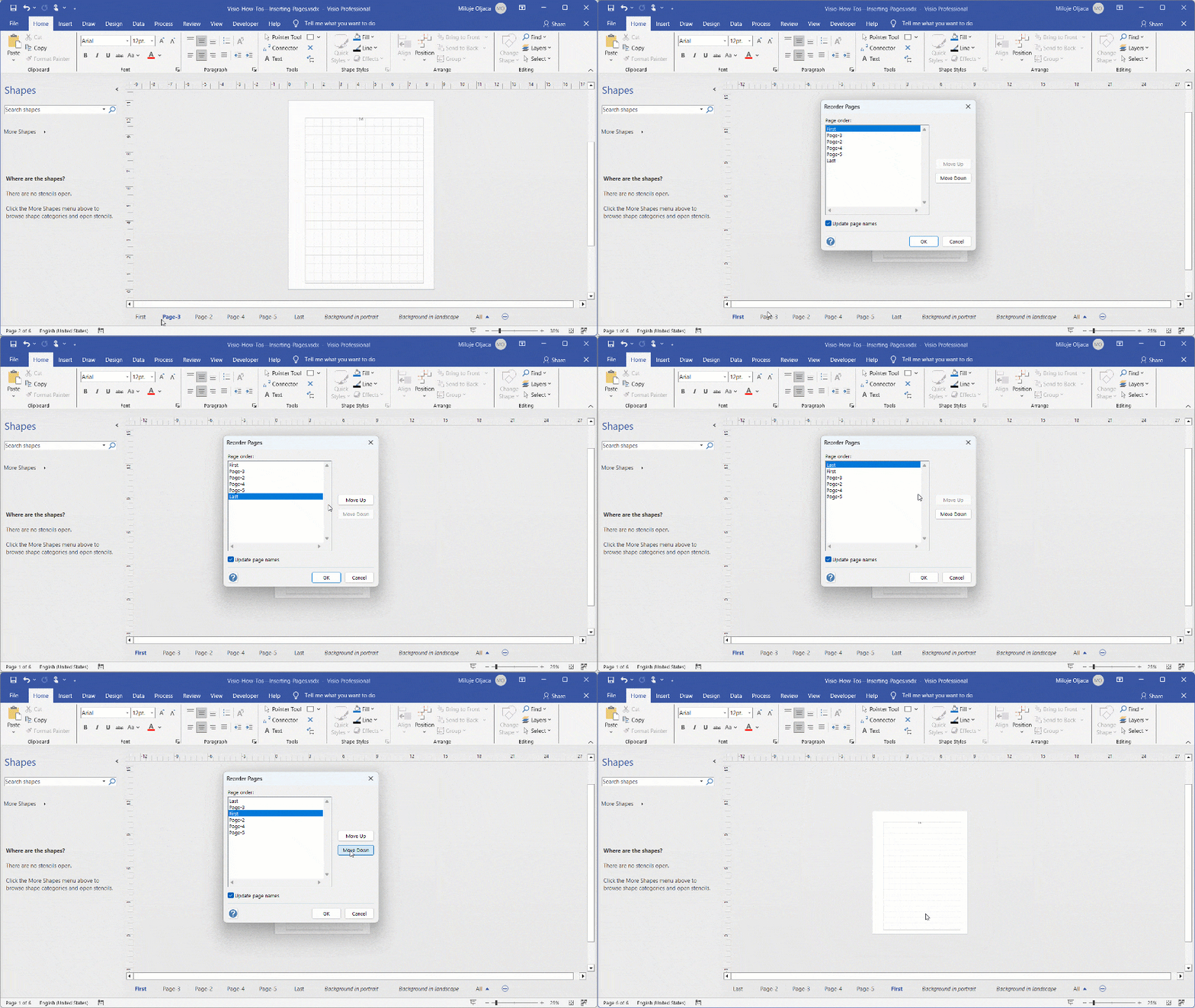
🔃 To Reorder Pages:
- Simply drag the page tabs to rearrange their order,
- Or right-click any tab and choose “Reorder Pages…” to move pages precisely in the list.
This is especially helpful when you’re organizing FIG. 1, FIG. 2, FIG. 3… and need them in proper sequence for export or submission.
Pro Tips
- 💡 Use consistent naming conventions (e.g., “FIG. 1”, “Flowchart A”) to simplify review.
- 📄 When using custom backgrounds or page templates, insert new pages from an existing one to avoid setup duplication.
- 🔁 Use the Page Reorder dialog for large documents where tab dragging becomes difficult.
🚀 Want to Work Smarter with Patent Drawings?
Learn how to revise, draft, and annotate drawings confidently — the easy way, with smart tools and streamlined lessons.