Visio How-To: Zooming and Panning for Patent Drawing Precision
- Visio for patent drawings
- May 24, 2025
Table of Contents
Navigate Patent Figures Faster with Zooming and Panning
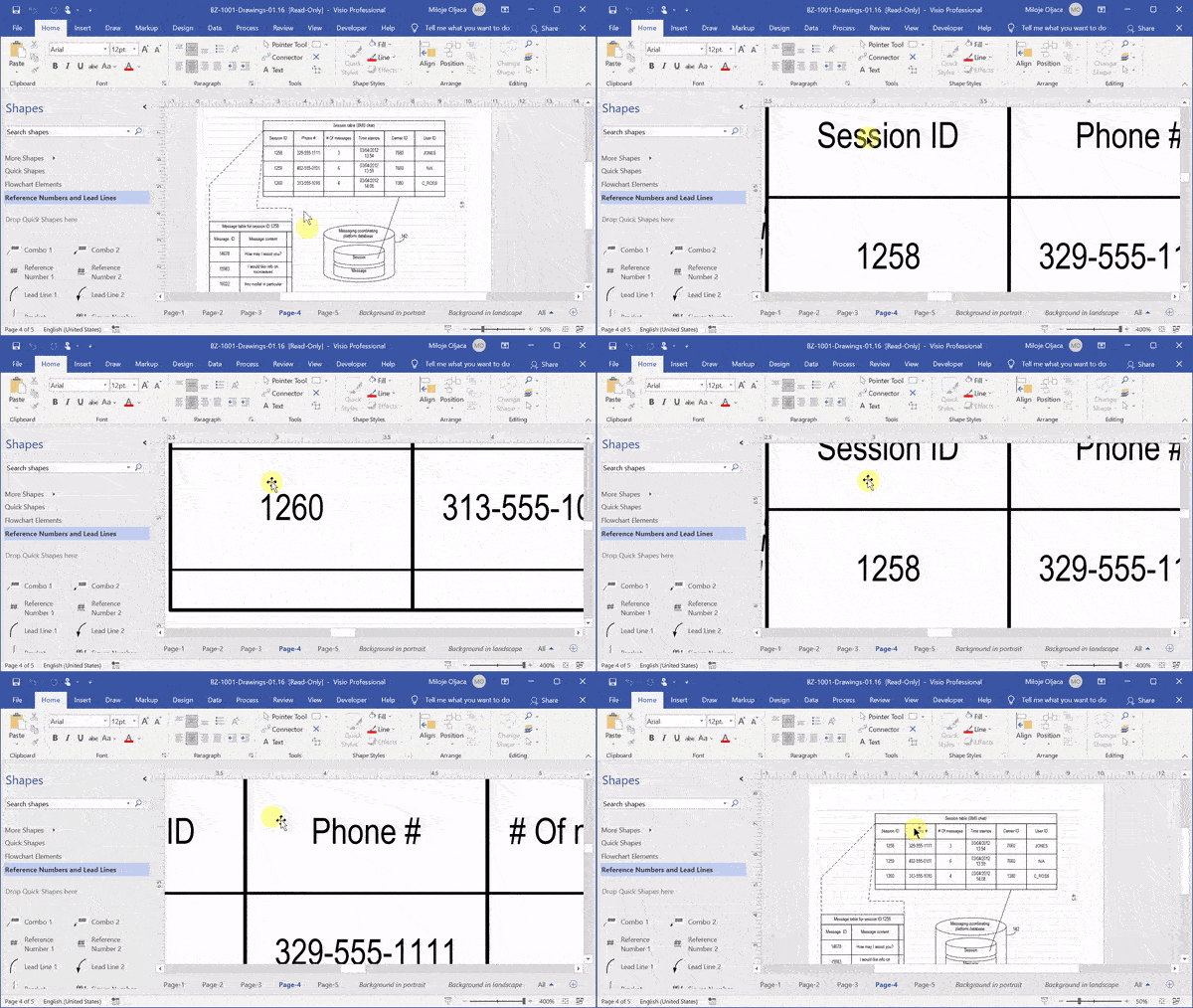
Whether you’re labeling reference numbers or aligning complex elements in a multi-page drawing, being able to quickly zoom and pan in Microsoft Visio is essential. These simple navigation skills help you work faster, avoid mistakes, and stay focused on what matters.
Yet many attorneys and patent staff still rely on clunky scrollbars or don’t know how to move fluidly across a figure. This article teaches the most efficient methods using only your mouse and keyboard.
Why It Matters
- Zooming in allows for pixel-level precision when adjusting lead lines, text, or connector positions.
- Panning lets you explore different regions of the figure without losing your place.
- Together, they reduce the friction of working on dense or multi-section diagrams.
Step-by-Step: Navigate Like a Pro
🔍 Zoom In and Out
- Zoom In: Hover your mouse over the target area, hold
Ctrl, and scroll forward. - Zoom Out: Hover again, hold
Ctrl, and scroll backward.
✋ Pan Across the Drawing
- Pan Up: Scroll forward
- Pan Down: Scroll backward
- Pan Left: Hold
Shift, scroll forward - Pan Right: Hold
Shift, scroll backward
Best Practices for Efficient Navigation
- 🎯 Always center your mouse over the area of interest before zooming.
- 🎬 Use zoom + pan in combination to inspect details, then reset your view.
- 💪 Practice until these motions become second nature—it pays off when reviewing complex figures.
🚀 Want to Work Smarter with Patent Drawings?
Learn how to revise, draft, and annotate drawings confidently — the easy way, with smart tools and streamlined lessons.